
Sidebar
how_to:iphone
Table of Contents
Setting up an iPhone/iPad/iPod Touch
To set up an iPhone to access VPOP3's mail, you first of all need to configure VPOP3 to allow access by remote users (unless you will only be using the iPhone in the office, connected via WiFi to the office LAN).
Adding the mail account to your iPhone/iPad
These instructions apply to the iPhone, iPad and iPod Touch, and are for iOS5. Other versions of iOS should be similar On the iPhone:
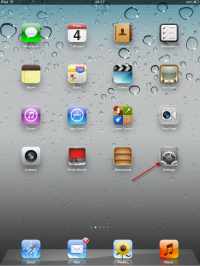
- Go to Settings
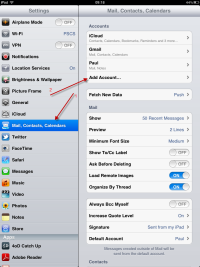
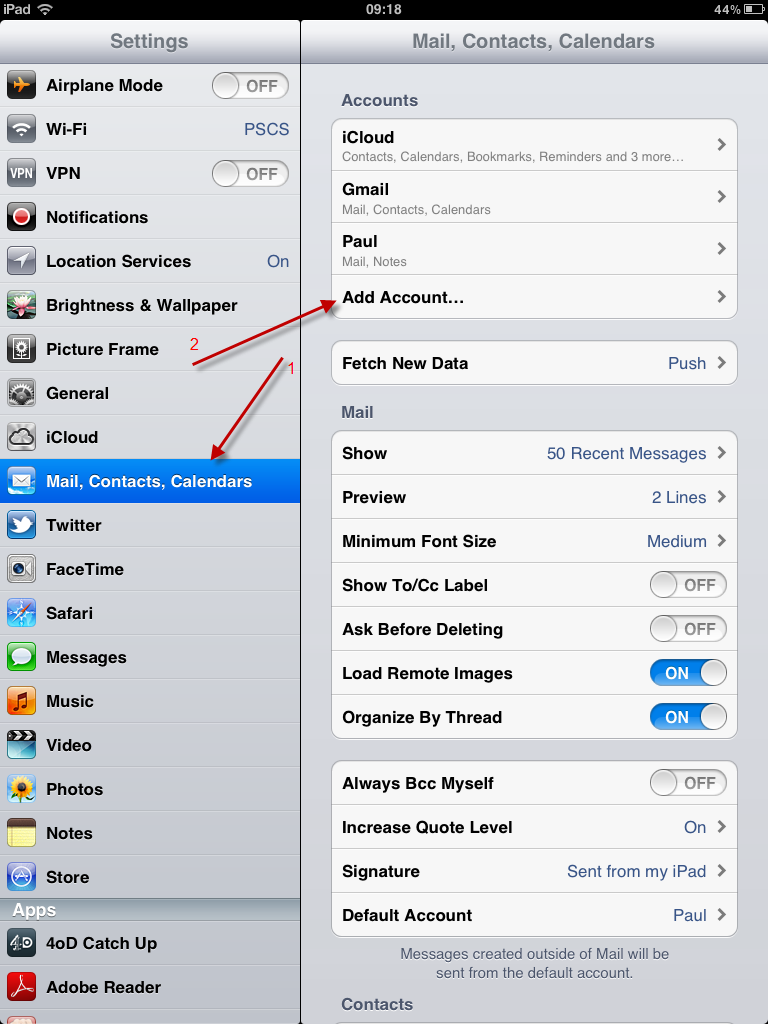
- Tap 'Mail, Contacts, Calendar', then 'Add Account'
- Tap Other
- Choose the Mail account type
- Enter your Name, email address, VPOP3 password, and press Save
- Choose IMAP (or POP if you have VPOP3 Basic)
- Scroll down and fill in the Incoming Mail Server details
- The Host Name is the the external IP address of your office network which is mapped through the router to the VPOP3 server (or the host name you have defined in your domain configuration which resolves to that address). Determining VPOP3 server address
- The User Name is the VPOP3 username
- The Password should already be completed
- Scroll down and fill in the Outgoing Mail Server details. The details are the same as for incoming mail.
- Press Save
- If you receive a prompt saying “Cannot Connect Using SSL - Do you want to try setting up the account without SSL?”, select 'yes'. See below for further details.

For general advice on using mobile devices, see Using a mobile phone with VPOP3
iOS Mail and SSL
There are two methods to support SSL encryption in email. The current way uses the same 'port' as normal, and sends a command to start encryption, and an obsolete way uses an alternate port.
It appears that the automatic setup system for iOS mail accounts only handles the obsolete method, even though the mail client itself handles the current method as well.
So, to use SSL encryption, follow the steps below (yes, it is a bit dumb that this is necessary (other email clients handle this automatically), but talk to Apple about that):
- During setup, tell your iPhone/iPad to trying setting up the account without SSL
- In the Mail Account list, tap the account you have just added
- Tap the line beginning with Account at the top, to edit the account settings
- Tap the Outgoing Mail Server SMTP line
- Tap the *Primary Server line
- Select the Use SSL option
- Ensure the Server Port is correct - usually either 25 or 587 as appropriate (not 465)
- Tap Done, and <Account
- Tap Advanced at the bottom
- Select the Use SSL option
- You will note that the 'Server Port' has changed to 993 now. Change that back to 143
- Tap <Account and Done
how_to/iphone.txt · Last modified: by 127.0.0.1


